Related Articles
No related articles found!
Plans And Billing In EasyDesk

Noah Parker
08 June, 2026
The Plans & Billing module allows administrators to manage subscriptions, billing details, payment methods, additional resources, account balance, invoices, SMS numbers, and transaction history from a single location.
Navigation Path:
Settings → Plans & Bills

The module contains the following sections:
Plans
SMS Numbers
SMS Transactions
Invoices
Subscriptions
Plans
The Plans page displays your current subscription status, plan details, usage limits, payment information, and billing services.
Trial Period
New accounts begin with a 14-Day Trial period.
The trial section displays:
Trial duration
Remaining days
Trial start date
Trial end date
Activate A Subscription
Navigate to Settings → Plans & Bills → Plans
Click Subscribe

Select a suitable plan
Complete payment
Subscription activates immediately after successful payment
Available Subscription Plans
EasyDesk offers four subscription tiers.

Free Plan
Suitable for small teams evaluating EasyDesk.
Features include:
2 Users
Email Ticketing
Starter Plan
Designed for growing support teams.
Features include:
3 Users
10 Collaborators
Email Ticketing
Additional Users Available
Pro Plan
Recommended for professional customer support operations.
Features include:
5 Users
20 Collaborators
Email Ticketing
Live Chat Support
Social Media Integration
Additional Users Available
Additional Collaborators Available
Enterprise Plan
Built for organizations requiring advanced scalability.
Features include:
10 Users
50 Collaborators
Email Ticketing
Live Chat Support
Social Media Integration
Unlimited Growth Potential
Additional Resource Management
Monthly And Yearly Billing
Two billing options are available:
Monthly
Charged every month
Flexible subscription management
Yearly
Lower overall cost
Save up to 40%
Annual billing cycle
Subscription Checkout
After selecting a plan:
Review the subscription summary
Apply a coupon code if available
Verify payment information
Click Pay

The checkout screen displays:
Plan price
Discount amount
Subtotal
Tax amount
Total due
Saved payment method
Payment Success
After payment:
A confirmation message appears
Click View Invoice to access the generated invoice
Click Close to return to the Plans page

Active Subscription Management
Once a subscription is active, the Plans page displays:
Current plan
Billing period
Next billing date
Monthly cost
Payment method details
Available actions:
Change Plan
Cancel Subscription

Change Plan
To switch plans:
Open Settings → Plans & Bills → Plans
Click Change Plan
Select a new subscription tier
Complete payment if required
The new plan becomes active immediately after confirmation.
Cancel Subscription
To cancel an active subscription:
Navigate to the active plan section
Click Cancel Subscription
Confirm cancellation
The subscription remains active until the end of the current billing cycle.
Payment Method Management
The payment method section displays:
Masked card number
Expiration date
Active coupon information
Update Payment Method
Click Change Payment Method
Enter new card information
Save the changes

Future subscription charges use the updated payment method.
Usage & Limits
The Usage & Limits section provides visibility and management for:
Users
Collaborators
Brands
Balance

Users
Displays:
Current user count
Included users
Extra users purchased
Add Additional Users
Click the + button
Select the number of additional users
Click Update
Complete payment
Additional user charges are applied immediately.
Collaborators
Displays:
Current collaborator count
Included collaborators
Available collaborator capacity
Add Additional Collaborators
Click the + button
Select quantity
Click Update
Complete payment
Brands
Displays:
Active brands
Included brands
Additional brands purchased
Add Additional Brands
Increase the quantity
Click Update
Complete payment

Additional Resource Payment
Whenever users, collaborators, or brands are added:
Review the payment summary
Verify billing details
Click Pay
Wait for payment confirmation
A success notification appears after payment processing completes.
Balance Management
The balance wallet is used for SMS services.
The Balance section displays:
Current balance
Add balance amount
Auto-refill settings
Add Balance
Enter a custom amount
Click Add
Complete payment

Auto-Refill
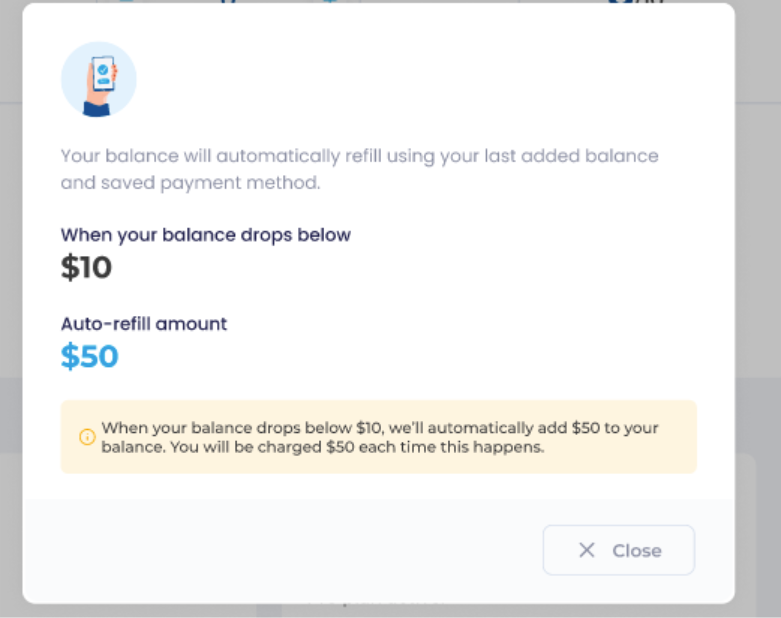
Auto-refill automatically adds funds when the account balance falls below a configured threshold.
Information displayed:
Refill threshold
Refill amount
Example:
Balance drops below $10
System automatically adds $50
Stored payment method is charged
Billing & Services
The Billing & Services section provides quick access to:
Invoices
Subscriptions
SMS Transactions

Invoices
The Invoices area contains all billing records generated within the account.
View Invoices
Navigate to Settings → Plans & Bills → Invoices
Select an invoice
Review billing details
Invoice details include:
Invoice number
Billing date
Payment status
Amount paid
Tax information
Subscriptions
The Subscriptions section provides historical subscription information.
Subscription History
Information available:
Plan name
Subscription period
Renewal dates
Status
Billing amount
Access:
Settings → Plans & Bills → Subscriptions
SMS Numbers
SMS Numbers allow businesses to send and receive SMS messages through EasyDesk.
Purchase An SMS Number
Navigate to Settings → Plans & Bills → SMS Numbers
Click Add SMS Number

Select a country
Review available numbers
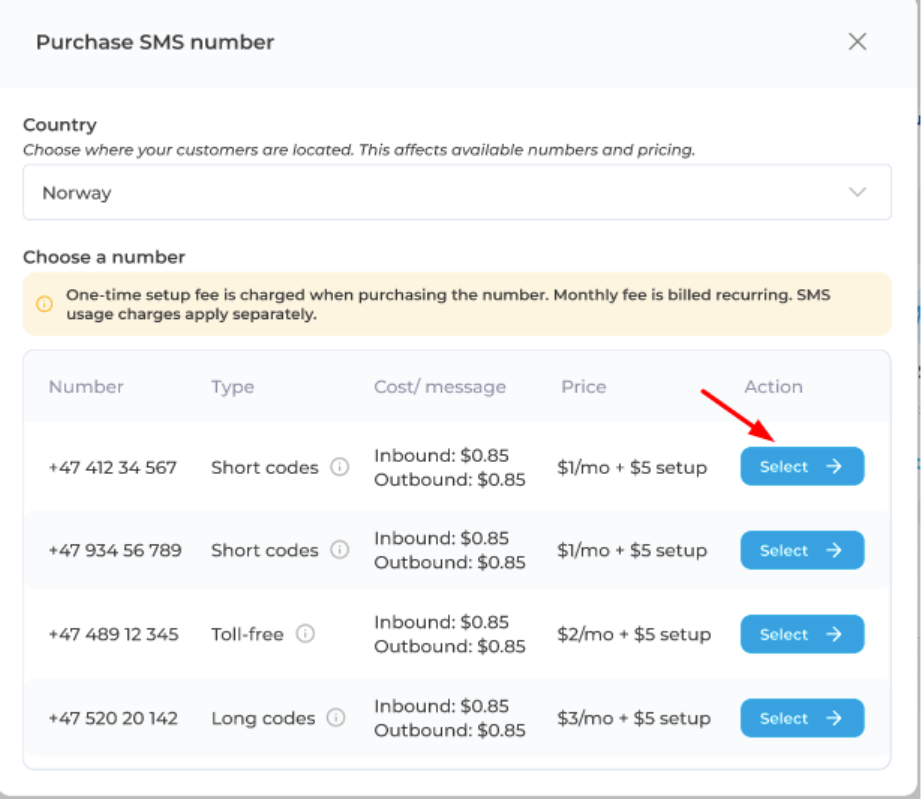
Click Select
The list displays:
Phone number
Number type
Cost per message
Monthly fee
Setup fee

Confirm Purchase
Before activation:
Review purchase details
Verify payment method
Click Pay
The confirmation screen displays:
SMS number
Setup fee
Monthly fee
Tax
Total amount
SMS Number Activation
After successful payment:
A success notification appears

Click Add Balance

A funded balance is required before SMS usage begins.
Best Practices
Keep payment information updated.
Enable auto-refill for uninterrupted SMS services.
Monitor user and collaborator limits regularly.
Review invoices monthly.
Upgrade plans before reaching resource limits.
Maintain sufficient account balance for SMS operations.
Was this information helpful?