Related Articles
No related articles found!
How To Manage CSAT And Feedback Survey In EasyDesk

Noah Parker
07 May, 2026
Customer satisfaction tells you what actually works and what needs improvement. EasyDesk gives you a built-in CSAT system so you can collect feedback directly from your customers after interactions and turn that data into actionable insights.
Access CSAT Settings
Start from your dashboard:
Go to Settings
Click CSAT & Feedback

Here you manage your entire survey setup, including rating, questions, and channel distribution.
Enable Customer Satisfaction Rating
Customer satisfaction rating is the core of your survey.
Toggle Customer satisfaction rating to enable it

Once enabled, EasyDesk starts calculating your CSAT score automatically based on responses
A scoring formula is applied behind the scenes, so no manual calculation is required.
Edit Your Survey
Click Edit survey to customize how your survey looks and behaves.

This is where you define what customers see when they submit feedback.
Configure Rating Scale
Headline
Write a clear and simple question that customers will answer.
Example:
How was your support experience today?
Keep it short and easy to understand.

Description (Optional)
Enable the description toggle if you want to add context.
Use it to explain why feedback matters.
Example:
We use your feedback to improve our support experience.

Rating Type
Choose how users will rate their experience:
Numeric (standard 1–5 scale)
Emoji (visual and quick feedback)
Custom text (fully personalized labels)

Numeric works best for structured reporting, while emoji feels more user-friendly.
Scale Range
Your CSAT scaling range will be selected to 5 points by default
Rating Labels And Impact
Each score can have:
A label (like Good, Poor, Exceptional)
A rating impact (Positive or Negative)
Example mapping:
5 → Exceptional → Positive
4 → Good → Positive
3 → Average → Positive
2 → Poor → Negative
1 → Dissatisfied → Negative
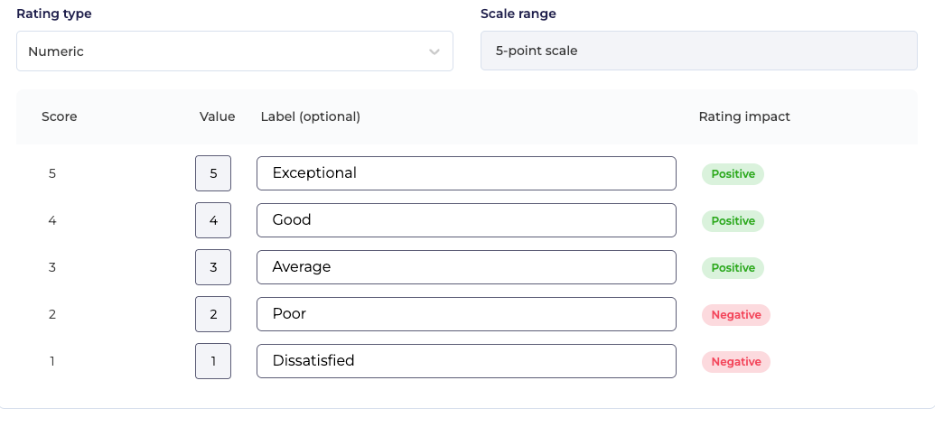
This classification helps EasyDesk calculate your overall CSAT score.
Add Follow-Up Questions
Follow-up questions help you understand the reason behind a rating.
Optional Questions For Negative Ratings
Enable this option to ask users why they gave a low rating.
Toggle Allow end users to select the reason for negative rating
Add a headline question

Example:
We’re sorry to hear that. What went wrong?
Add Response Options
You can add up to 5 predefined reasons such as:
Took too long
Unfriendly
Unhelpful response
Hard to understand
Use Add option to include more responses.
This makes analysis easier by grouping feedback into categories.
Add Open-Ended Question
Sometimes structured answers are not enough.
Enable open-ended responses to collect detailed feedback.
Toggle Enable text responses
Add a headline
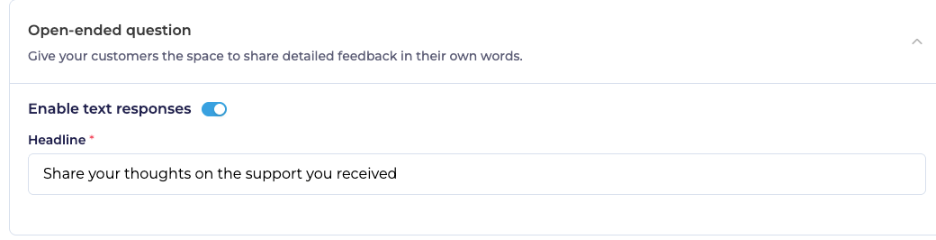
Example:
Share your thoughts on the support you received
This gives customers space to explain their experience in their own words.
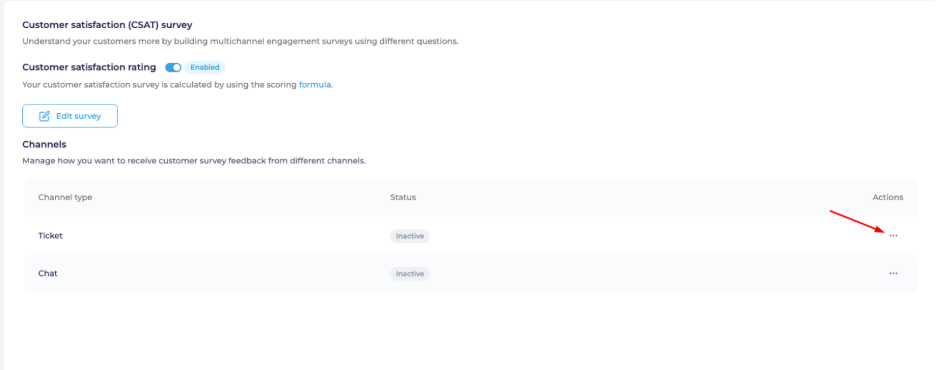
Manage Survey Channels
After setting up your survey, decide where it will be used.
In the Channels section, you will see available options:
Ticket
Chat
Each channel has a status:
Active
Inactive
Activate CSAT For Channels
To enable CSAT for a channel:
Click the three-dot menu next to the channel
Select Activate

Once activated, surveys will be sent automatically after interactions in that channel.
How CSAT Works In Practice
A customer interacts via chat or ticket
Interaction ends or reaches a defined state
Survey is triggered automatically
Customer submits rating and feedback
EasyDesk calculates and stores the score
You can later analyze trends and identify areas for improvement.
Best Practices For Better Results
Keep your main question short and clear
Use simple rating labels customers understand instantly
Add negative feedback options to identify patterns quickly
Enable open-ended responses for deeper insights
Activate CSAT only on relevant channels to avoid overload
Summary
CSAT & Feedback in EasyDesk helps you:
Measure customer satisfaction consistently
Understand the reasons behind feedback
Improve support quality using real data
Collect feedback across multiple channels
A well-configured survey turns every interaction into a learning opportunity.
Was this information helpful?