Related Articles
No related articles found!
Canned Response Settings In EasyDesk

Ava Adaline
22 February, 2026
Templates settings allow teams to standardize customer communication across emails and system notifications. From automated responses to workflow-triggered messages, templates ensure consistency, save time, and maintain a professional brand voice across every interaction.
Open Templates Settings
Follow these steps to access template settings:

Go to Settings from the sidebar.
Click Templates under the settings menu.
View all existing templates in a grid layout.
Use the search bar to find specific templates quickly.
Each template card shows:
Template preview
Template title
Quick actions menu
Create New Template
Create a new email template using these steps:

Step 1: Start Template Creation
Click Create template at the top of the Templates page.
Step 2: Enter Basic Details
Fill in the required fields:

Template Name — Internal name for identification
Category — Select template type:
Ticket
User
Conversation
Subject Line — Email subject shown to recipients
Step 3: Write Email Content
Use the rich text editor to:

Add formatted text
Insert links and images
Structure the email layout
Choose Template Language
The language section allows for multilingual communication.
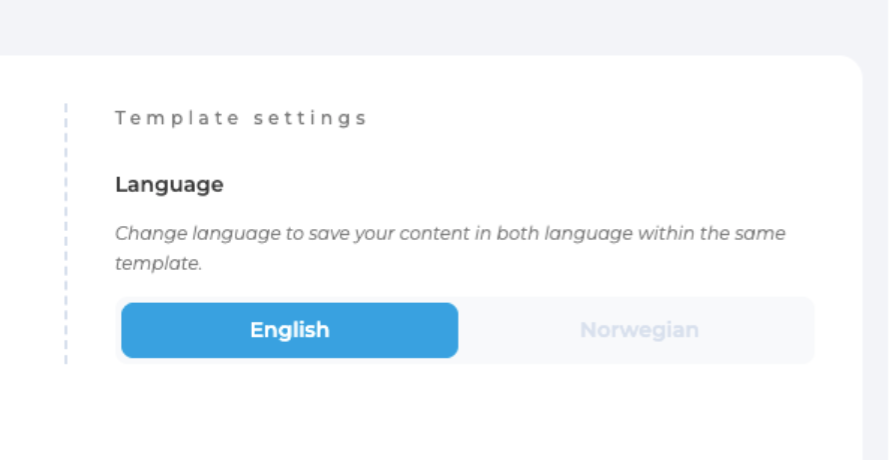
Available options:
English
Norwegian
Switch language to maintain separate versions of the same template.
Save And Preview Template
Click Save & Preview to:

Store the template
View the final email design
Verify formatting before activation
Edit Existing Template
Modify any template using these steps:
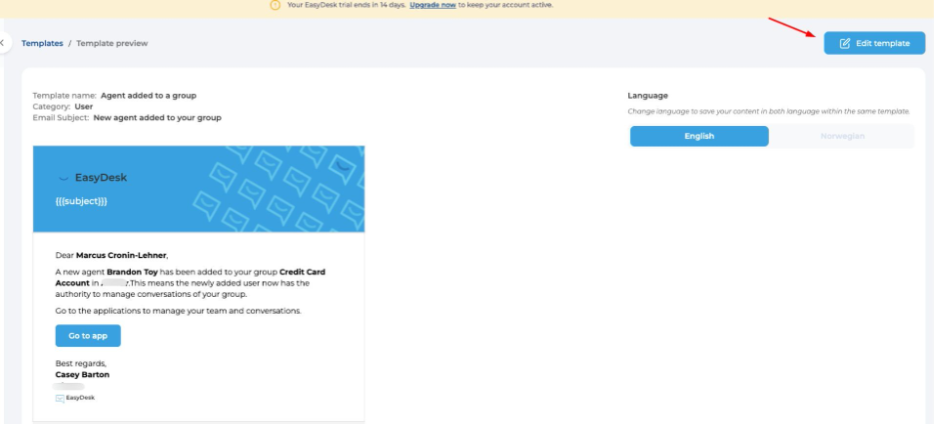
Step 1: Open Template Preview

Click a template card to view details.
Step 2: Start Editing
Click Edit Template in the top-right corner.
Step 3: Update Template Content
You can edit:
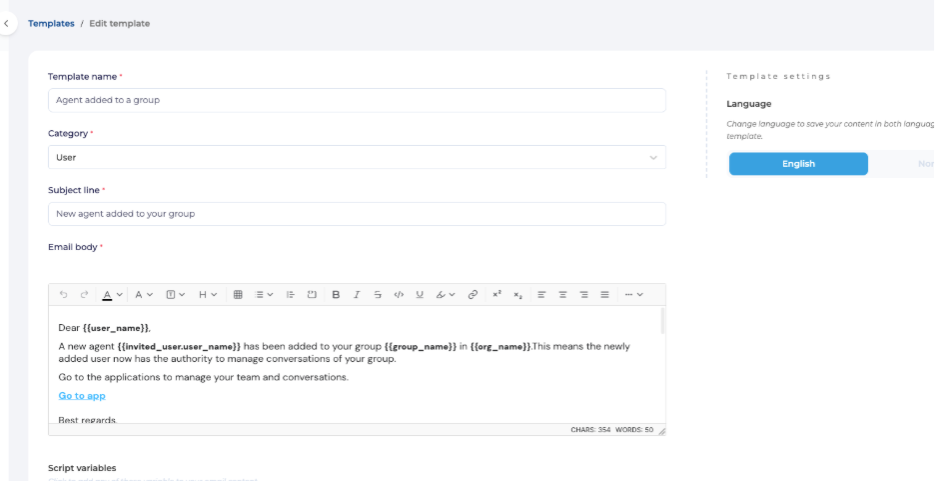
Template name
Category
Subject line
Email content
Use Script Variables
Script variables allow dynamic personalization.
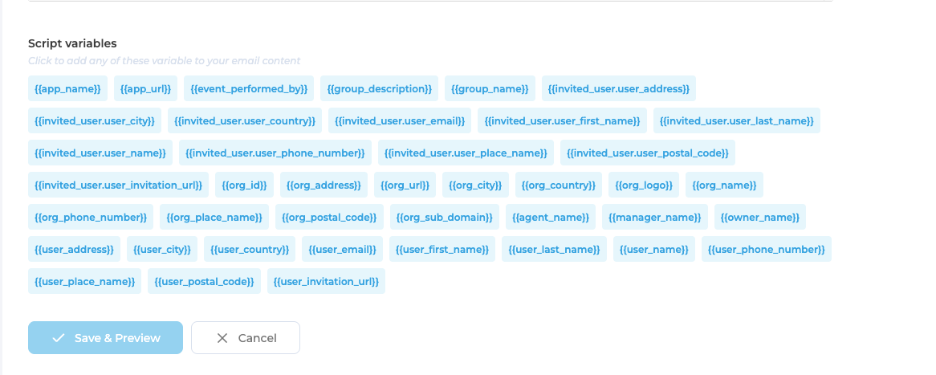
Examples include:
Username
Organization name
Email address
Group details
Event information
Insert variables directly into the email body to automatically populate recipient data.
Save Template Changes
Click Save & Preview to apply for updates.

Changes take effect immediately for future automated emails.
Best Practices for Template Management
Follow these guidelines for effective template usage:
Use clear subject lines
Keep formatting simple
Include personalization variables
Maintain brand tone consistency
Review templates periodically
Template settings help automate communication while maintaining consistency and professionalism. Proper configuration ensures faster responses, improved customer experience, and reduced manual effort across support operations.
Was this information helpful?